
How to fix unable to share hotspot
Specific Case: Only needed when you want to share a hotspot, but the Hotspot option is locked and cannot be shared normally, requiring APN configuration. This issue occurs with only some packages and devices, and is mostly seen on iPhone. Hotspot Sharing Tip: High data usage may cause your data allowance to run out faster, or using multiple devices simultaneously may slow down internet speed.
How to Set Up APN for Hotspot Sharing on iPhone
- Go to Settings > Cellular > Select your eSIM > Tap Cellular Data Network
- Enter the correct APN from your eSIM Info QR Code page (make sure there are no missing characters, extra characters, or spaces) > in both the Cellular Data and Personal Hotspot sections (leave Username and Password blank)
- Success! Toggle Airplane Mode on and off, then return to the Personal Hotspot page to turn it on (if it still doesn't work, try restarting your device)
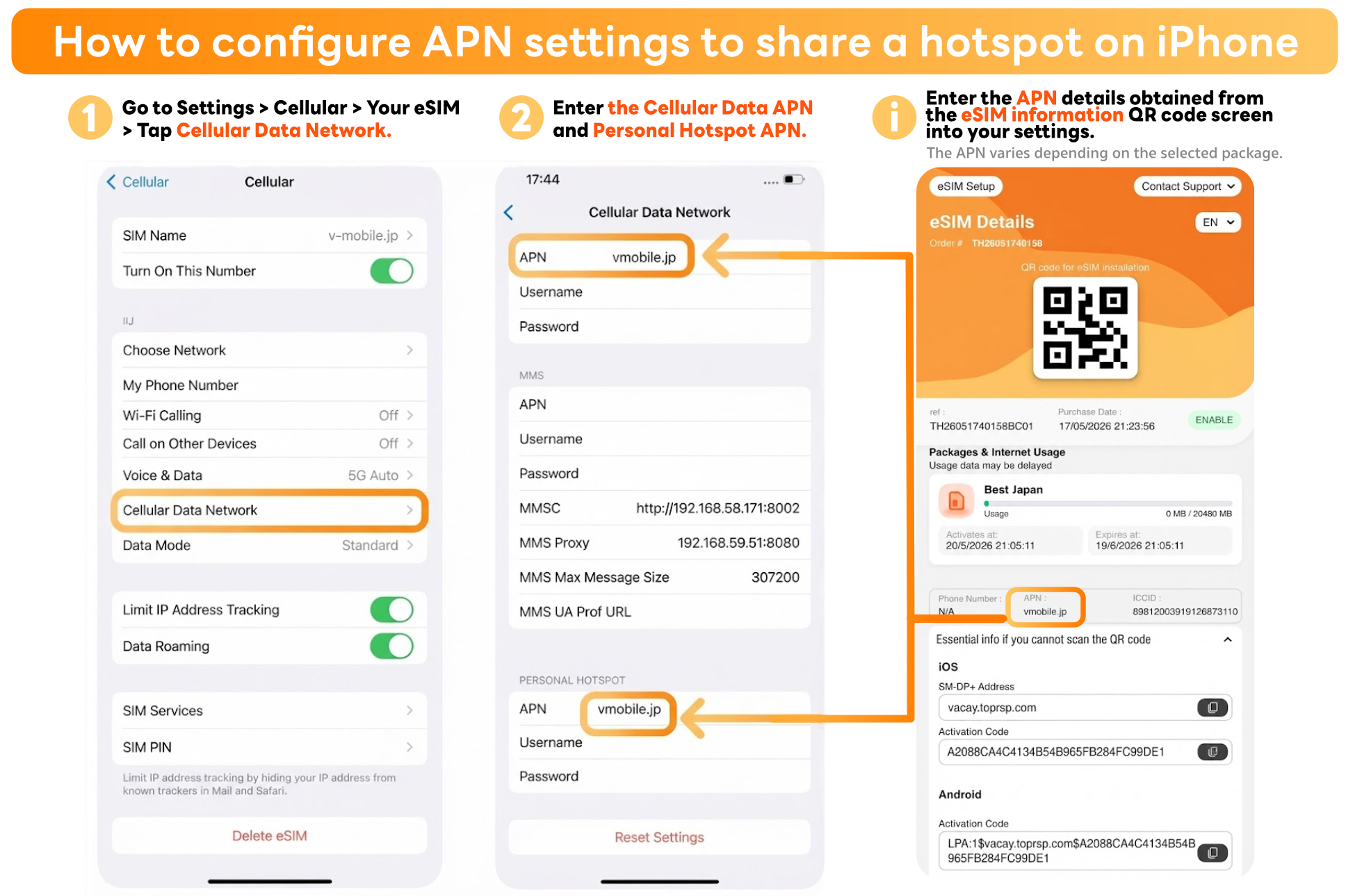
(Summary: How to Set Up APN for Hotspot Sharing on iPhone) Go to Settings > Cellular > Select your eSIM > Tap Cellular Data Network > Enter the exact APN from your eSIM Info QR Code page without extra spaces > Fill in both Cellular Data and Personal Hotspot APN fields (Leave username and password blank) > Success! Toggle Airplane Mode on and off, then go back to Personal Hotspot to enable it > (If it still doesn't work, restart your device)
How to Set Up APN for Hotspot Sharing on Android
- Go to Settings > Connections > Mobile networks > Access Point Names
- Select your eSIM and tap the Add (+) button in the top right corner
- Type the correct APN in the APN field according to your eSIM Info QR Code page, enter any name for the Name field, and tap Save
- Tap to select the newly added APN
- Toggle Airplane Mode on and off for a moment, then start using the internet immediately (if it still doesn't work, restart your device)
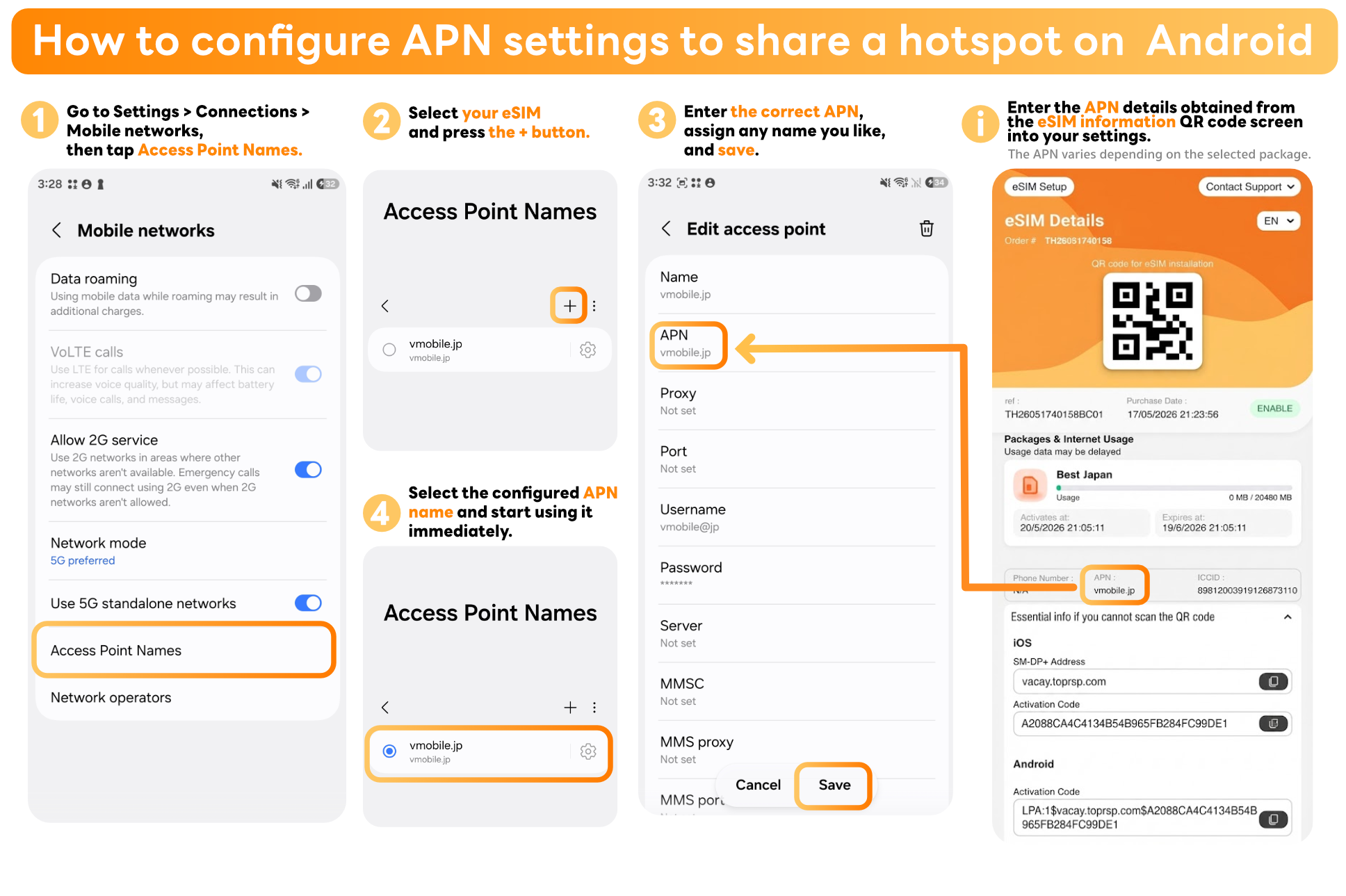
(Summary: How to Set Up APN for Hotspot Sharing on Android) Go to Settings > Connections > Mobile networks > Access Point Names > Select your eSIM and tap the Add (+) button in the top right > Enter the correct APN from your eSIM Info QR Code page, type any name, and tap Save > Tap to select the new APN > Toggle Airplane Mode on and off briefly, then use the internet right away (restart if it doesn't work)
Shared Hotspot, but Cannot Find the Wi-Fi Name?
Make sure that when the hotspot is enabled, it is not set to private, hidden, or restricted from being visible, and that SSID hiding is disabled.
● iPhone
- Swipe down to open the Control Center
- Touch and hold the connection control box (Wi-Fi, Cellular, Airplane Mode, and Bluetooth)

- Tap to toggle Personal Hotspot to Allow Others to Join

- Try searching for the hotspot Wi-Fi network name again
● Android
- Go to Mobile Hotspot settings
- In the name and password settings, look for the option Hide SSID > Turn it off or on some models Hide my device > Turn it off or uncheck the box

```
